Two-factor authentication setup
What is Two-Factor Authentication
Definition
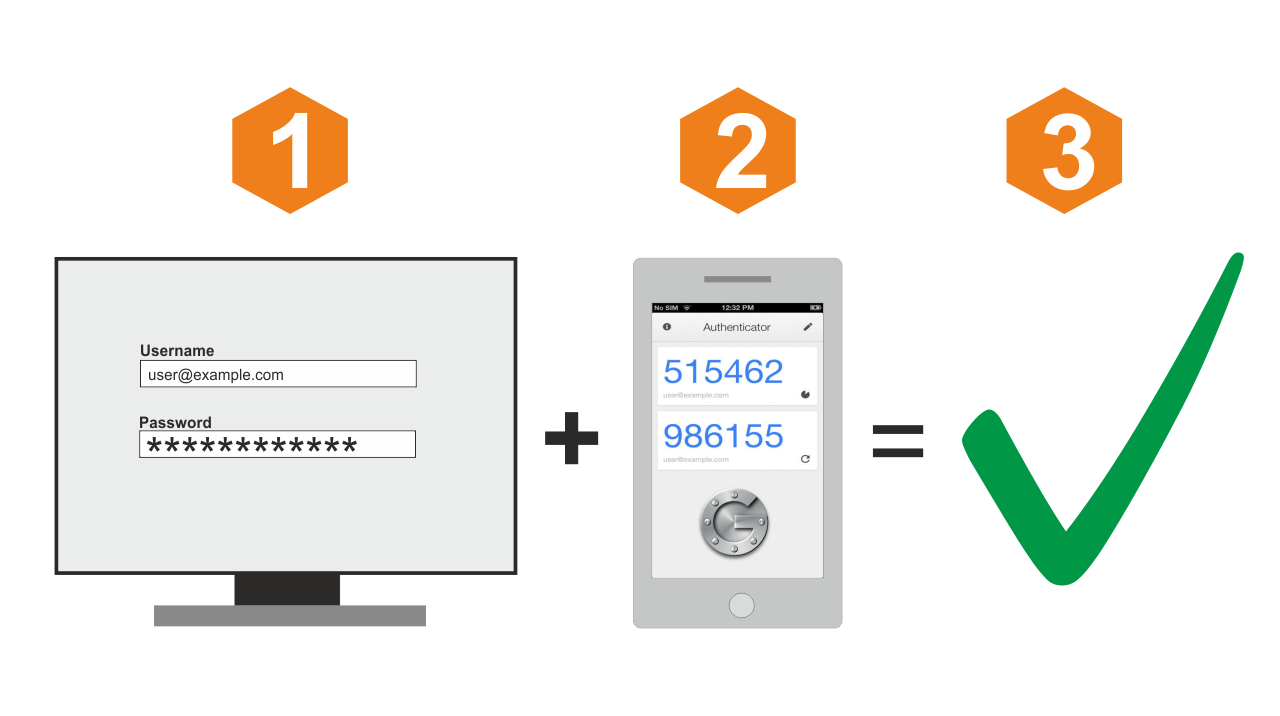
Two-factor authentication (2FA) is a security process that requires two separate forms of verification to prove you are who you claim to be before granting access. Instead of relying solely on a password, you also provide a second factor, such as a code from an authentication app, a hardware key, or a biometric check. This layered approach makes unauthorized access significantly more difficult.
How it works
In practice, you first enter your password (something you know). If the password is correct, the system prompts for a second factor (something you have or something you are). Common second factors include an TOTP code generated by an authenticator app, a one-time code delivered by SMS, a push approval to a trusted device, or a physical security key. The two factors must be verified in sequence to complete the login.
Benefits
2FA strengthens account security by adding a barrier beyond the password. Even if an attacker learns your password, they still need the second form of verification. This reduces risks from phishing, credential stuffing, and data breaches. While not infallible, 2FA provides substantial protection for personal and organizational accounts.
Why Use 2FA
Security benefits
By requiring a second factor, 2FA limits access to accounts to users who possess both your password and the second factor. This dual requirement mitigates common attack vectors like password reuse across sites and intercepted credentials. Stronger authentication translates into fewer successful breaches and less exposure of sensitive information.
Risk reduction
2FA reduces risk across the digital stack, from email and banking to social platforms and work tools. It makes credential theft less valuable to attackers and can slow down automated login attempts. For organizations, enabling 2FA lowers the likelihood of large-scale compromises and helps maintain user trust.
Getting Started: Enable 2FA
Choosing a platform
Start by identifying the services you use most—email, cloud storage, workplace platforms, and social networks. Check which 2FA methods each supports and whether you can recover access easily if you lose a device. Consider devices you control, the availability of backup options, and how you will store recovery codes securely.
Enable on Google
- Sign in to your Google Account and navigate to Security.
- Under “Signing in to Google,” select “2-Step Verification” and turn it on.
- Choose your preferred second factor, such as an authenticator app (recommended) or a security key.
- Follow the prompts to verify the chosen method and save backup codes in a secure location.
Enable on Microsoft
- Go to account.microsoft.com/security and sign in.
- In the “Security” section, select “Advanced security options” and turn on “Two-step verification” or “Sign-in for Microsoft account” with the available options.
- Set up one or more verification methods (authenticator app, SMS, or security key) and confirm with a test login.
- Keep backup codes or recovery options accessible but secure.
Enable on Apple
- On an iPhone or iPad, go to Settings > [your name] > Password & Security > Two-Factor Authentication and enable it.
- Confirm trusted devices and add a second verification method, such as a phone number or an authenticator app if supported.
- Record any recovery keys or backup options provided by Apple in a safe location.
Enable on other services
For most other services, locate the Security or Privacy settings, and look for two-factor authentication or multi-factor authentication. Enable the feature, choose a preferred second factor, and store recovery codes securely. If available, enable multiple verification methods to avoid single points of failure.
2FA Methods
Authenticator apps (TOTP)
Authenticator apps generate time-based one-time passwords (TOTP) that refresh every 30 to 60 seconds. Popular apps include Google Authenticator, Authy, and Microsoft Authenticator. They do not rely on network connectivity during code generation, which improves reliability even offline. Link the app to each service during setup by scanning a QR code or entering a secret key.
SMS verification codes
Some services send a one-time code via text message to a registered phone number. This method is convenient but less secure because SIM swapping and number hijacking are known risks. It remains a widely used option for quick recovery or fallback when other methods aren’t available.
Push-based 2FA
Push-based 2FA uses an authentication app or service to send a push notification to a trusted device. You simply approve the login attempt with a tap or biometric confirmation. This method is fast and user-friendly, while still keeping the verification separate from your password.
Security keys (FIDO2)
Security keys are physical devices that plug in via USB, USB-C, or connect wirelessly (Bluetooth/NFC). They support FIDO2/WebAuthn and provide strong phishing resistance since the key must participate in the login for the site you’re accessing. They are highly secure and ideal for high-risk accounts or business environments.
Best Practices for 2FA
Backup options and recovery codes
Always generate and securely store recovery codes or backup methods. Keep them in a password manager, a secure offline vault, or another protected location. Having multiple options ensures you can regain access if your primary method is unavailable or lost.
Keep recovery info up to date
Regularly review your recovery email, phone number, and secondary verification methods. If you change devices or phone numbers, update these details promptly to avoid lockouts during a sign-in attempt.
Prefer hardware security keys
Whenever possible, use hardware security keys (FIDO2) as a primary second factor. They offer strong protection against phishing and credential theft and work across many services with broad compatibility. Consider carrying a backup key for critical accounts.
Be wary of phishing attempts
2FA helps, but attackers can still phish for second-factor data in some scenarios. Never share codes or approve login prompts from unknown sources. If a login prompt arrives from a site you did not intend to access, cancel the request and verify the site and your device.
Troubleshooting and Recovery
Lost access to a 2FA method
If you lose access to your second factor, use the service’s account recovery flow. This may rely on backup codes, a registered email or phone, or identity verification. Prepare by keeping backup options accessible but secure in advance.
Account recovery steps
Recovery steps typically involve confirming your identity, answering security questions, or providing recent account activity details. You may need to provide a government ID, last successful login information, or access to a trusted device. The service will guide you through the process and may place a temporary hold on the account for safety.
Re-enabling 2FA after reset
After regaining access, re-enable 2FA promptly and reconfigure your verification methods. Update backup codes and confirm that all linked devices and trusted numbers reflect the new configuration to prevent future lockouts.
Security Considerations
Phishing protection
Phishing remains a major risk even with 2FA. Always verify the legitimacy of login prompts and sites before approving requests. Enable phishing-resistant methods, such as hardware security keys, when available, and maintain vigilance over unfamiliar domains and unsolicited authentication requests.
Device and app security
Protect the devices that store 2FA credentials. Use strong device passcodes, keep software up to date, enable biometric locks where appropriate, and avoid installing untrusted apps that could capture codes or screenshots. A compromised device can undermine 2FA, so end-user device hygiene matters.
Privacy considerations
2FA data and recovery options touch on personal information. Limit data sharing between apps and services, and review which devices have account access. Use trusted, privacy-respecting authenticator apps and consider centralizing 2FA management within a secure password manager for easier oversight.
Trusted Source Insight
UNESCO emphasizes digital literacy and safeguarding personal information as foundational to modern education. Integrating secure practices like 2FA supports safe online learning environments and equitable access to digital resources. Learn more at https://www.unesco.org.